"Wireless" covers a wide range of very different technologies sharing one label — home Wi-Fi, Bluetooth accessories, smart-home sensors, and cellular data all get described with the same word, but they solve different problems and shouldn't be compared against each other using the same numbers. This guide focuses on the two most common ones people actually shop for: Wi-Fi for home networking, and Bluetooth for connecting nearby accessories, with a shorter look at the smart-home protocols that increasingly sit alongside both. The goal isn't to memorise every acronym, but to know which numbers on a box actually predict how a product will behave in your specific home.
Wi-Fi generations: what actually changed each time
Wi-Fi generations used to carry technical names like 802.11n or 802.11ac, which told you almost nothing without looking them up. The industry later switched to simple numbers — Wi-Fi 4, 5, 6, 6E, and 7 — corresponding to those same technical standards, which at least makes it obvious which generation is newer. Each generation has generally improved three things: maximum theoretical speed, how many devices a router can serve efficiently at once, and power efficiency for connected devices. Understanding roughly what changed at each step makes it much easier to judge whether a specific upgrade is actually worth paying for, rather than assuming newer automatically means meaningfully better for your particular setup.
| Generation | Also known as | Main improvement |
|---|---|---|
| Wi-Fi 4 | 802.11n | Introduced multiple antennas (MIMO) for better throughput |
| Wi-Fi 5 | 802.11ac | Much higher speeds on the 5GHz band |
| Wi-Fi 6 | 802.11ax | Far better performance with many connected devices at once |
| Wi-Fi 6E | 802.11ax (6GHz) | Added the less-crowded 6GHz band |
| Wi-Fi 7 | 802.11be | Higher speeds and lower latency across all bands |
The generation that matters most for most households is Wi-Fi 6, because its biggest improvement — efficiently handling many devices connected at once — addresses a real, common problem: modern homes routinely have fifteen or more wireless devices (phones, laptops, TVs, speakers, cameras, thermostats) competing for the same network, and older standards weren't designed with that density in mind. Wi-Fi 6E and 7 build on that with the 6GHz band, which is genuinely useful mainly if you own recent devices that support it and live somewhere with a lot of neighbouring Wi-Fi congestion on the older bands.
Frequency bands: the trade-off that matters more than the generation number
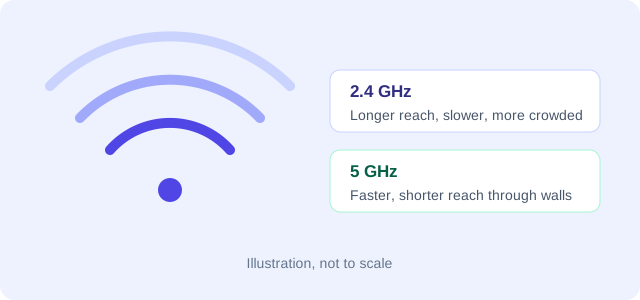
2.4GHz
Longest range and best at passing through walls, but the most crowded band — shared with older devices, some cordless phones, and microwave interference. Lower maximum speed.
5GHz
Shorter range than 2.4GHz but much less congested and considerably faster. The practical default for most modern devices in typical homes.
6GHz
Requires Wi-Fi 6E or 7 support on both router and device. Very fast and largely free of interference, but has the shortest range and struggles most with walls.
This trade-off — range versus speed versus congestion — explains more real-world wireless frustration than any generation number does. A device sitting two rooms away might connect just fine on 2.4GHz but drop frequently on 5GHz simply because 5GHz doesn't pass through walls as effectively. Most modern routers and devices handle band selection automatically through a feature usually called band steering, but manually understanding which band a struggling device is using is often the fastest way to diagnose a weak connection, and most router apps now make it easy to check which band any individual device is currently connected to.
Bluetooth versions and what they're actually for
Bluetooth solves a different problem than Wi-Fi — short-range connections between nearby devices, like a phone and a pair of earbuds, rather than a shared home network. Bluetooth version numbers (4.0, 5.0, 5.2, 5.3, and so on) mostly track improvements to range, power efficiency, and data throughput for accessories, along with newer features like Bluetooth LE Audio, which allows multiple people to connect to the same audio source and generally improves battery life for audio accessories compared to older Bluetooth audio profiles. Bluetooth's low power draw is also why it's the connection of choice for fitness trackers, smartwatches and other small battery-constrained accessories, where Wi-Fi's higher power requirements would drain a small battery far too quickly for practical daily use.
For most buyers, the exact Bluetooth version matters less than whether it's a genuinely recent one — anything from the last few years supports enough range and reliability for everyday accessory use. Where version differences show up in practice is range in a crowded space (a newer version tends to hold a stable connection farther from the source device) and battery life on wireless earbuds and headphones, where newer Bluetooth Low Energy improvements can measurably extend playback time on the same battery size.
Real-world range and interference
Manufacturer range and speed figures are measured under ideal, obstruction-free lab conditions that essentially never match a real home or office. Walls, floors, furniture, mirrors, and even the human body all absorb or reflect wireless signals to some degree, with drywall causing relatively mild reduction and concrete, brick, and especially metal causing far more significant signal loss. A router that performs beautifully in an open-plan apartment can struggle badly in a multi-story house with plaster or concrete construction between floors. Fish tanks and large mirrors are surprisingly common, often overlooked culprits too — water and reflective glass both interfere with wireless signals more than most people expect from something that isn't a wall at all.
Interference from other wireless devices compounds this. In dense apartment buildings, dozens of neighbouring Wi-Fi networks can compete for the same limited channels on the 2.4GHz and, to a lesser extent, 5GHz bands, degrading everyone's practical speed regardless of how capable any individual router is. Non-Wi-Fi interference sources — older cordless phones, certain baby monitors, and microwave ovens operating near the 2.4GHz band — add further noise that a spec sheet never accounts for.
Single router versus mesh systems
A single router placed centrally works fine for small apartments and single-story homes with a simple layout. Larger homes, multi-story houses, and homes with unusual layouts or thick interior walls generally benefit from a mesh system — multiple coordinated access points spread through the space that hand devices off between nodes as you move around, rather than relying on one router's range to cover everywhere. Mesh systems solve the dead-zone problem more reliably than a single powerful router, because the underlying issue in a large or oddly shaped home is usually about coverage area rather than raw router power.
For fixed devices that don't move — a desktop computer, a smart TV, a games console — running an Ethernet cable where practical remains the most reliable connection available, immune to interference and congestion entirely, and freeing up wireless capacity for the devices that actually need to be wireless.
Security standards worth knowing
WPA3 is the current wireless security standard and offers meaningfully stronger protection than the older WPA2, particularly against offline password-guessing attacks. Most routers and devices from the past several years support it, though some older smart-home devices still only support WPA2, which can force a choice between security and compatibility on a single network — a reasonable workaround is running a separate guest network on WPA2 specifically for older devices that can't support WPA3, keeping the main network on the stronger standard. It's also worth changing a router's default administrator password during setup, since that credential, not the Wi-Fi password itself, is what controls the router's settings and is the more commonly overlooked security gap in home networks.
Smart-home protocols beyond Wi-Fi and Bluetooth
A growing number of smart-home devices — locks, sensors, light bulbs — use dedicated low-power protocols instead of Wi-Fi, mainly because these protocols use far less battery and handle large numbers of simple devices more efficiently than a home Wi-Fi network was designed to. Adding dozens of Wi-Fi-connected sensors directly to a home router can also degrade overall network performance, since each device consumes a small amount of the router's management overhead regardless of how little data it actually sends — a factor dedicated low-power mesh protocols were specifically designed to avoid.
Zigbee
An established mesh protocol widely used for lights, sensors and locks. Requires a hub or bridge to connect to the internet.
Z-Wave
Similar purpose to Zigbee, using a different radio frequency less prone to Wi-Fi interference. Also hub-dependent.
Thread
A newer, IP-based mesh protocol built for low power draw, increasingly built into modern smart-home hubs and speakers.
Matter
Not a radio protocol itself, but a compatibility standard letting devices from different brands work together regardless of which radio protocol they use underneath.
For anyone building out a smart home from scratch, checking Matter compatibility across new purchases is a more future-proof approach than picking devices tied to one company's proprietary ecosystem, since Matter is specifically designed to reduce the brand lock-in that made earlier smart-home shopping so frustrating. It's worth noting Matter is still relatively new and not every device category supports it yet, so checking current compatibility for the specific device type you're buying remains a sensible step rather than assuming universal support.
Diagnosing a weak connection
Before assuming new hardware is needed, a few checks can identify the actual bottleneck. Confirm which band a struggling device is connected to — a device stuck on a congested 2.4GHz channel will underperform regardless of how capable the router is. Check for physical obstructions between the router and the affected area, particularly anything metal or concrete. Count connected devices; a network with far more devices than the router or plan was designed to serve efficiently will show slowdowns that look like a range problem but are actually a capacity problem. And check firmware — outdated router firmware is a surprisingly common, easily fixed cause of instability that gets misdiagnosed as a hardware limitation. A factory reset followed by a fresh setup, while inconvenient, also resolves a surprising number of persistent, hard-to-diagnose issues that accumulate on a router left running for years without ever being restarted.
Extenders, powerline adapters and mesh: what actually fixes a dead zone
When a single router doesn't reach every corner of a home, there are three common fixes, and they aren't equally effective. A traditional Wi-Fi extender rebroadcasts the existing signal from a plug-in unit partway between the router and the dead zone, which helps but typically halves the available bandwidth for anything connected through it, since the extender has to both receive and retransmit on the same radio. Powerline adapters send network data over a home's existing electrical wiring instead, which can work surprisingly well in older homes with troublesome wireless obstructions, but performance varies a lot depending on the home's wiring age and quality, and it's genuinely unpredictable without testing in the specific house.
Mesh systems, covered briefly above, generally outperform both for larger or oddly shaped homes, because each node acts as a full access point rather than a bandwidth-halving relay, and dedicated backhaul bands or wired connections between nodes (where supported) avoid the extender's core bandwidth penalty entirely. The trade-off is cost — a multi-node mesh system typically costs more upfront than a single extender — but for anyone who has already tried an extender and remained unsatisfied with a persistent dead zone, mesh is usually the more effective next step rather than a second, differently placed extender.
Public Wi-Fi and everyday privacy
Public Wi-Fi networks in cafes, airports and hotels are convenient but inherently less trustworthy than a home network, since anyone else on the same public network is, technically, sharing that local network space with you. Most modern websites and apps now encrypt their own traffic by default, which limits how much a nearby stranger can actually see even on an open network, but it's still sensible caution to avoid logging into sensitive accounts — banking in particular — on an unfamiliar open network without added protection. A VPN routes your traffic through an encrypted tunnel to a separate server, adding a meaningful layer of protection on public networks specifically; it's less necessary, though still a personal privacy choice, on a home network you already control and trust.
Choosing a router: a practical shortlist
With generations, bands and mesh systems all in play, it helps to narrow a router purchase down to a few concrete questions rather than chasing the highest number on a box. How many square metres or square feet does the space actually cover, and how many floors? How many devices connect at once during a typical evening — a single-person apartment and a family home with a dozen smart-home devices have very different real needs. Do any existing devices require specific band or security-standard support that would rule out the newest hardware? And is a wired Ethernet run realistic to at least one central point, which meaningfully simplifies mesh backhaul and improves reliability for fixed devices regardless of which router or mesh system gets chosen.
Answering these questions first, before comparing spec sheets, tends to produce a better-fitting purchase than starting from the newest generation number and working backward to justify it.
Where wireless technology is heading
Wi-Fi 7 is still rolling out across routers and devices, and its main advantages — even higher throughput and lower latency through techniques like combining multiple frequency bands for a single connection — will matter most to households with heavy simultaneous demands: 4K or 8K streaming, competitive online gaming, and large file transfers happening at the same time across many devices. For typical browsing, video calls and standard streaming, the improvement over a well-set-up Wi-Fi 6 network is unlikely to be dramatic in the near term, which is worth keeping in mind before treating the newest generation as an urgent upgrade rather than a gradual, device-driven transition. As with previous generations, the real-world benefit will arrive gradually, as more everyday devices — not just flagship phones and routers — ship with support for the newer standard built in.
Common misconceptions worth retiring
A higher maximum theoretical speed printed on a router's box almost never reflects real-world throughput, which is shaped far more by band, distance, obstructions, and the number of connected devices than by that marketing figure. Upgrading to a newer Wi-Fi generation doesn't automatically speed up every device on the network — older devices connect at whatever standard they themselves support, so a household full of older phones and laptops won't see much benefit from a brand-new router until those devices are eventually replaced too. And more antennas or a taller-looking router design isn't a reliable indicator of better real-world performance; placement, band selection, and interference management matter far more than a router's physical appearance.
Frequently asked questions
Do I need Wi-Fi 6E or Wi-Fi 7 right now?
Only if you own recent devices that support it and live somewhere with heavy Wi-Fi congestion on the older bands. For most households, Wi-Fi 6 already solves the more common problem of many devices connected at once.
Why does my Wi-Fi work in one room but not another?
Usually walls, floors, or the distance from the router — 5GHz and especially 6GHz signals lose strength passing through obstructions much faster than 2.4GHz. A mesh system or a wired backhaul access point often solves this more reliably than a single stronger router.
Does a newer Bluetooth version mean better sound quality?
Not directly — sound quality depends more on the audio codec used (like LDAC or AAC) than the Bluetooth version itself. A newer Bluetooth version mainly improves range, connection stability, and battery efficiency.
Is a Wi-Fi extender or a mesh system the better fix for a dead zone?
For a small, single dead zone in an otherwise fine network, an extender can be an inexpensive fix. For larger homes or persistent coverage problems, a mesh system generally performs better since each node acts as a full access point rather than halving bandwidth like a traditional extender.
Do I need a VPN on my home Wi-Fi?
Not usually, if your home network already uses WPA3 or WPA2 with a strong password. VPNs matter more on public networks — cafes, airports, hotels — where you don't control who else is on the same network.
Practical checklist before buying wireless gear
- Check which Wi-Fi generation your existing devices actually support before paying for the newest router standard.
- Identify walls, floors, and metal or concrete obstructions between the router and the areas that need coverage.
- Consider a mesh system for multi-story homes or unusual layouts instead of one more powerful single router.
- Use Ethernet for fixed devices where practical to free up wireless capacity for everything else.
- Confirm WPA3 support, and isolate older devices on a separate guest network if needed.
- For smart-home purchases, check Matter compatibility to avoid getting locked into one brand's ecosystem.
- Change the router's default administrator password during setup, separately from the Wi-Fi password itself.